
Photo Editing
Crop photos, adjust images, add text, and make quick changes using simple editing tools.


Paint 3D is a free drawing and photo editing app developed by Microsoft. You can use it to edit pictures, remove backgrounds, add text, and create simple 3D models without needing professional design skills.
Whether you want to edit a photo or try making something in 3D, Paint 3D gives you plenty of tools to get started.
Crop photos, adjust images, add text, and make quick changes using simple editing tools.
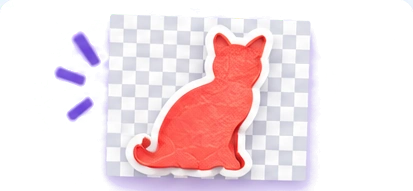
Use Magic Select to cut out objects or people from photos and create images with transparent backgrounds.

Make 3D objects using shapes, doodles, and different colors. You can also rotate and arrange them to create your own designs.
Paint 3D is a lightweight application for Windows that lets you edit photos, draw pictures, and create 3D designs without using complicated software. Whether you're working on a school project, making a simple graphic, or experimenting with 3D shapes, you can get started with its easy-to-use tools.
The app works with compatible versions of Windows 10 and Windows 11. You can use Magic Select to remove photo backgrounds, add 2D or 3D text, customize objects, and save your finished artwork in different formats.
Paint 3D is free to use and doesn't require any advanced editing skills. If you're new to the app, you can explore its features and follow our installation guide to get started.
Installation & compatibility
| Information | Details |
|---|---|
| App Name | Paint 3D |
| Developer | Microsoft |
| Category | Photo Editing / 3D Drawing |
| Price | Free |
| Platform | Windows |
| Microsoft Store | Removed November 4, 2024 |
| Windows 10 | Supported by compatible older versions |
| Windows 11 | Compatibility depends on the app package |
Paint 3D is a drawing and image editing application that Microsoft originally introduced with Windows 10. It combines traditional painting tools with features that let you create and edit three-dimensional objects.
If you've ever used Microsoft Paint, you'll find some familiar tools here, such as brushes, shapes, text, and colors. However, Paint 3D goes a step further by letting you work with 3D models.
For example, you can draw a simple shape, turn it into a 3D object, rotate it, and add stickers or textures. You can also edit regular pictures, remove backgrounds, and save transparent PNG images.
The best part is that you don't need experience with complicated 3D software to try these features. It's a useful option for school projects, basic image editing, and experimenting with 3D designs.
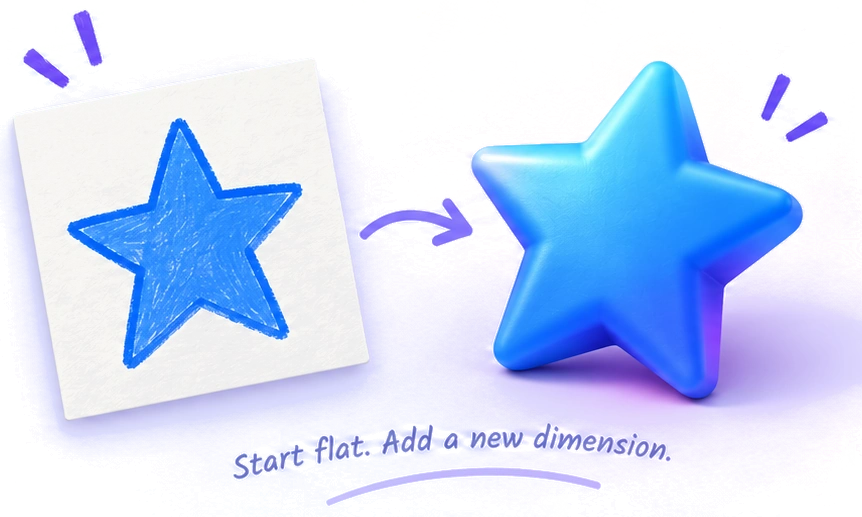
Paint 3D comes with several creative tools for editing images and making 3D artwork. Here are some of its most useful features.
Magic Select is one of the most useful tools in Paint 3D. It helps you select an object or person in a picture and separate it from the background.
For example, if you have a photo of a flower and want to use only the flower in another design, Magic Select can help you cut it out.
How to use Magic Select:
Magic Select works well with clear subjects, although photos with complicated backgrounds may need some manual adjustments.
Want to create something in 3D? You don't have to build everything from scratch.
Paint 3D includes ready-made shapes, such as cubes, spheres, and cylinders. You can resize, rotate, and combine these objects to create your own designs.
There's also a 3D Doodle tool that lets you draw shapes and give them depth.
How to create a 3D shape:
Paint 3D also works as a regular drawing app. You can sketch, paint, and create illustrations using different brushes and 2D shapes.
Choose from various brush styles, adjust their thickness, and pick the colors you want.
Whether you're drawing something by hand or making a simple graphic, these tools give you plenty of ways to customize your work.
You can add stickers to your artwork or apply images as textures to 3D objects.
For example, you could place a pattern on a cube or add a custom image to the surface of a model.
Simply choose a sticker, adjust its size, and place it where you want. If you're applying it to a 3D object, rotate the model to see how the design looks from different angles.
Paint 3D lets you add both 2D and 3D text to your designs.
Use 2D text for normal captions, labels, or headings. If you want lettering that has depth and can be positioned in a 3D scene, choose the 3D text option instead.
You can customize the font, size, and color to match your artwork.
The Canvas tool helps you manage the size and background of your image. You can change the canvas dimensions and enable transparency when creating graphics without a solid background.
Paint 3D also includes effects that let you experiment with the lighting and overall appearance of your 3D scene.
Try different settings to see which one looks best for your project.
Since Paint 3D has been removed from the Microsoft Store, installing it is no longer as simple as following older tutorials.
Before trying to install the app, follow these steps.

Open the Windows Start menu and search for Paint 3D.
If the app appears, open it and check whether it's working. You don't need to install another copy if everything is running normally.

If Paint 3D isn't installed, first check which version of Windows you're using.
Go to Settings > System > About to find your Windows specifications.
You should also check whether your computer uses an x64, x86, or ARM-based processor, as this can affect app package compatibility.

If you have an older Paint 3D installation package, check its source, publisher, digital signature, and system requirements before opening it.
Windows app packages may also require additional components to install successfully.
Avoid downloading modified or unknown files simply because they promise a working version.

If you have a trusted, compatible package, follow the installation process supported by that package and your Windows version.
If Windows displays an error, read the message carefully. It may indicate a compatibility issue, missing dependency, or package problem.

Once the installation is complete, search for Paint 3D in the Start menu.
Open the app, create a small drawing, and try saving it to make sure everything works properly.
One of the most popular uses of Paint 3D is removing image backgrounds. You can do this using Magic Select and then save the result as a transparent PNG.
Here's how it works.
Launch Paint 3D, click Menu > Open, and choose the picture you want to edit.
For the best results, use a photo where the subject is clearly visible against the background.
Choose Magic Select from the toolbar.
Adjust the selection box so it covers the object or person you want to keep. Click Next to continue.
Paint 3D will try to identify the subject automatically. If the selection isn't perfect, use Add or Remove to refine it.

When you're happy with the selection, click Done.
Copy or cut the selected subject and place it on a clean canvas. You can also remove any remaining unwanted background areas manually.
Now open the Canvas settings and enable Transparent canvas.
Remember that enabling transparency alone doesn't automatically remove the background from your original photo.
Click Menu > Save as > Image.
Choose PNG as the file format and enable transparency if the option is available.
Save your picture and open it to check the result.

That's it! You now have a picture that you can use in presentations, graphics, or other designs without its original background.
Paint 3D allows you to save your work in different formats depending on what you're creating.
| File Type | Best For |
|---|---|
| PNG | Images with transparent backgrounds |
| JPEG | Regular photos and finished pictures |
| Paint 3D Project | Saving work you want to edit again |
| 3D Model Export | Using a 3D object in another compatible application |
If you're working on a 3D design, it's a good idea to save an editable project copy before exporting the final result.
An ordinary PNG or JPEG image won't preserve your objects as editable 3D models.
The available 3D export formats can vary depending on the version you're using.

Paint 3D and Microsoft Paint are two different applications, although both were developed by Microsoft.
Microsoft Paint focuses mainly on 2D drawing and photo editing. Paint 3D was designed to make basic 3D creation accessible alongside traditional image editing.
| Feature | Paint 3D | Microsoft Paint |
|---|---|---|
| Basic photo editing | Yes | Yes |
| Drawing and brushes | Yes | Yes |
| Text and 2D shapes | Yes | Yes |
| Creating 3D objects | Yes | No |
| Rotating 3D models | Yes | No |
| Microsoft Store availability | Discontinued | Available through supported Windows channels |
If you only need to crop photos, draw, or remove simple backgrounds, the newer Microsoft Paint may be enough.
However, if you want to experiment with 3D shapes and models, Paint 3D offers tools that regular Paint doesn't include.
Since Microsoft discontinued Paint 3D, you may want to explore other applications, especially if you can't install it on your computer.

If you're mainly interested in basic photo editing, drawing, and adding text, Microsoft Paint is a good alternative.
It's simple to use and continues to receive improvements on supported versions of Windows.

If you want more advanced 3D modeling features, Blender is worth considering.
It's a free, open-source application that supports 3D modeling, animation, rendering, and much more.
However, Blender has a steeper learning curve than Paint 3D.

If you only want to view and inspect supported 3D models, Babylon.js Sandbox is another option.
It runs in your browser, so you don't need to install a full 3D modeling application just to inspect a model.
If Paint 3D is already installed but isn't working properly, try these solutions before uninstalling it.

First, restart your computer and try opening the app again.
You can also check Windows for system updates. If you're considering repairing or resetting the app, back up any important project files first.

Check that your installation package supports your Windows version and processor architecture.
If an error appears, note the error code and check whether the package requires additional components.
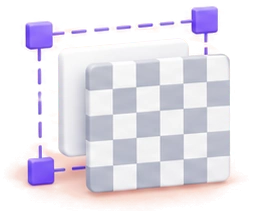
If your exported image has a white background, check whether you actually removed the unwanted background pixels.
Make sure the canvas is transparent and that you're saving the image as PNG rather than JPEG.
Different applications may handle model formats, materials, and textures differently.
Check the supported export formats and inspect your model in the destination application.

Yes, Paint 3D was offered by Microsoft as a free application. However, Microsoft removed it from the Microsoft Store on November 4, 2024, so the original official download is no longer available there.
Paint 3D was not preinstalled on Windows 11, and Microsoft no longer distributes it through the Microsoft Store. Some older packages may work on certain Windows 11 systems, but compatibility isn't guaranteed.
Paint 3D was originally introduced for Windows 10 and came preinstalled on some devices. If you already have it, you may still be able to use it. New downloads are no longer available through the Microsoft Store.
Microsoft deprecated Paint 3D in August 2024 and removed it from the Store in November 2024. The company now recommends other tools for everyday image editing and viewing 3D content.
Yes. You can use the Magic Select tool to separate an object from its background. After cleaning up the selection, enable canvas transparency and save the result as a PNG.
No. Microsoft Paint is mainly designed for 2D drawing and image editing, while Paint 3D also includes tools for creating and editing simple 3D objects.
Yes. Microsoft has confirmed that existing installations can continue to work. However, Paint 3D is discontinued and no longer receives new official updates.
Not immediately. Try restarting your PC and checking for simple issues first. Since the app is no longer available in the Microsoft Store, uninstalling it may leave you without an easy way to reinstall it.
It depends on what you want to do. Microsoft Paint is useful for basic editing and drawing. Blender is better suited to advanced 3D modeling, while Babylon.js Sandbox can help you inspect supported 3D models.
Paint 3D made it easy to edit photos, create transparent images, and experiment with 3D artwork without learning complicated design software.
Although Microsoft has discontinued the app, you can still use it if it's already installed on your computer. Just make sure to keep your projects backed up and avoid removing a working installation unnecessarily.
If you're starting fresh and can't find a compatible version, Microsoft Paint and other available alternatives are worth exploring.