How to Remove Background in Paint 3D
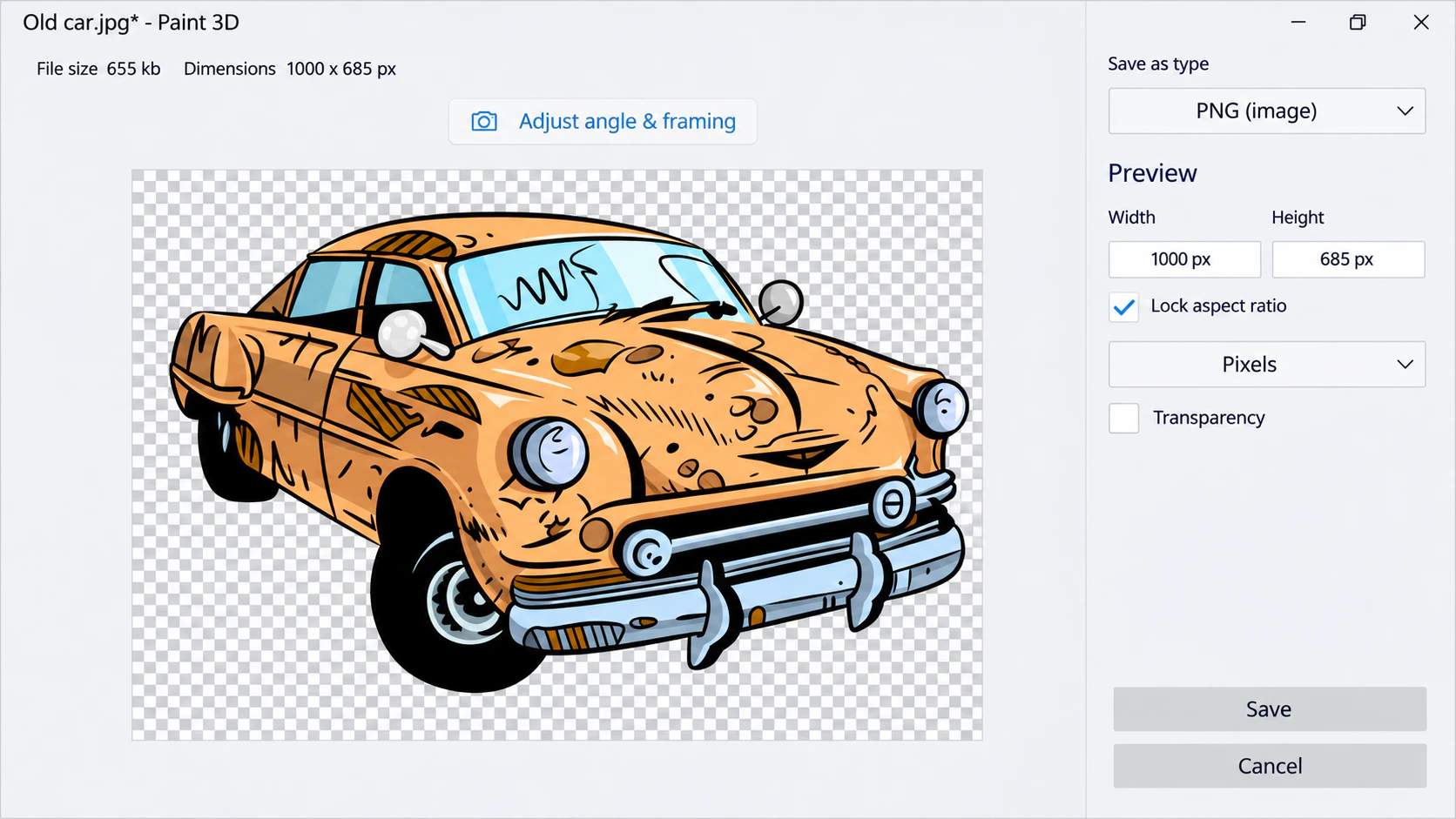
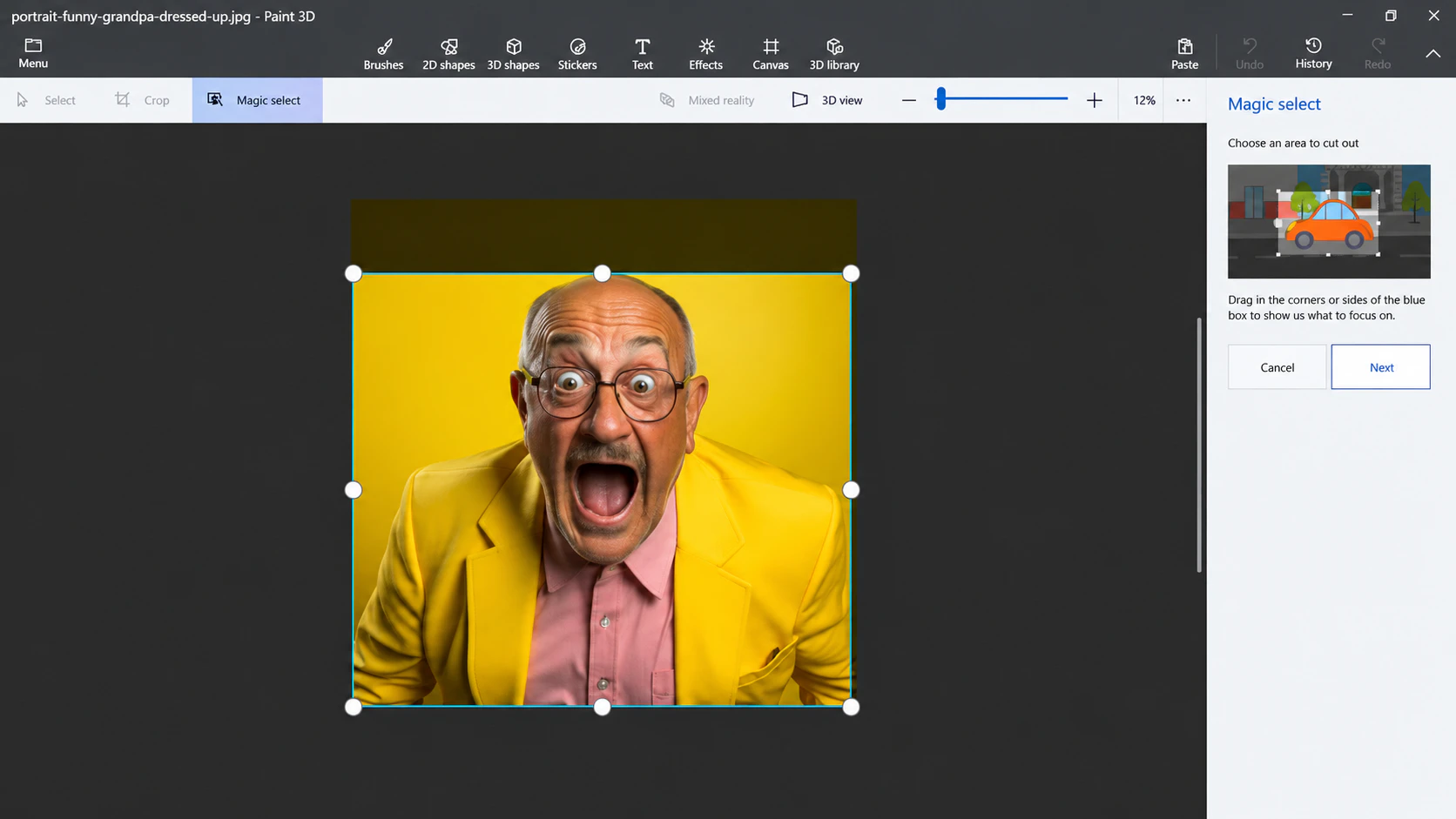
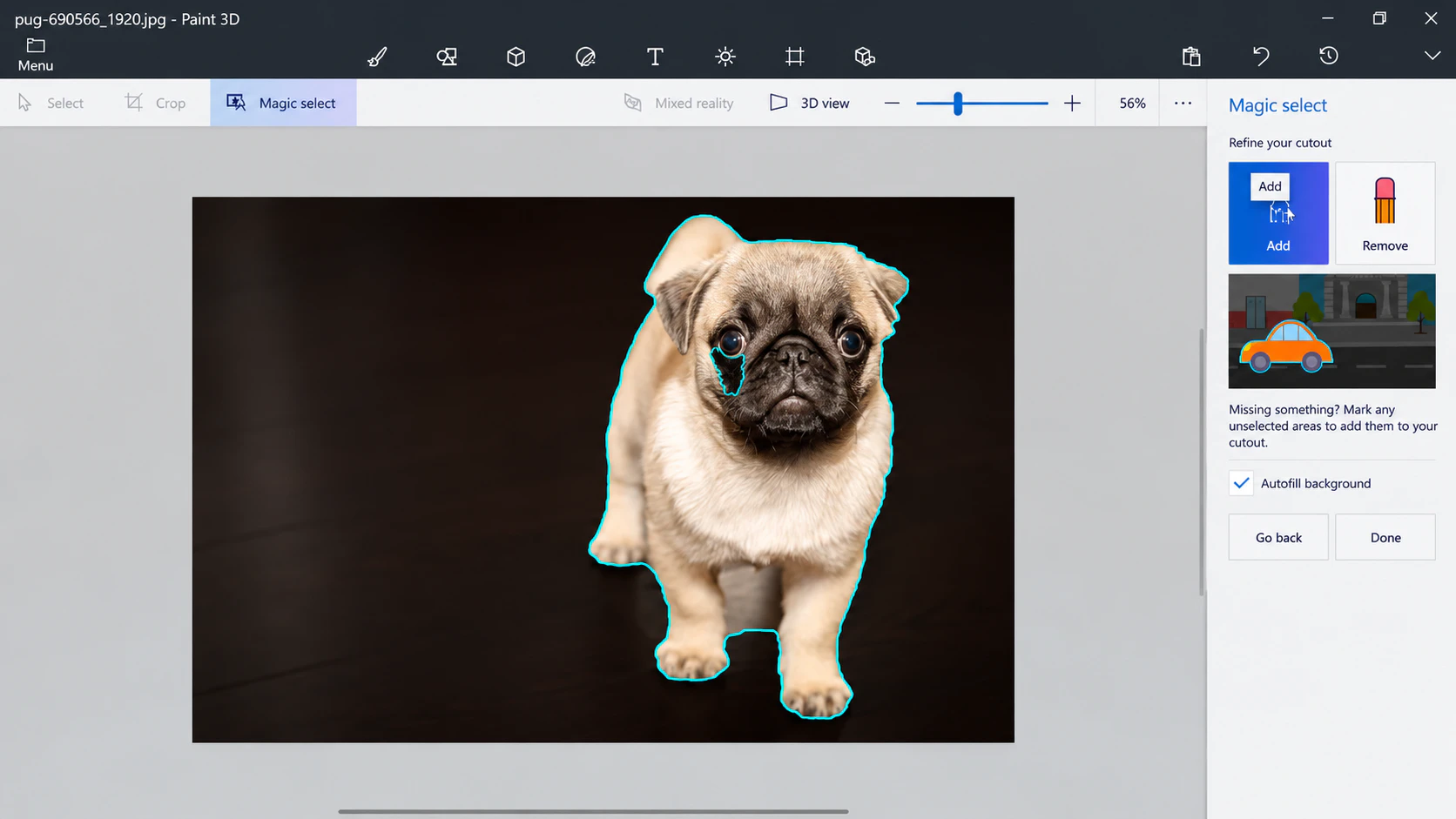
Isolate a subject with Magic Select, remove the old backdrop, and save a transparent PNG.
Follow illustrated steps for photo edits, transparent PNGs, text, and 3D projects.
Isolate a subject with Magic Select, remove the old backdrop, and save a transparent PNG.
Turn on Transparent canvas and export a PNG that keeps empty areas transparent.
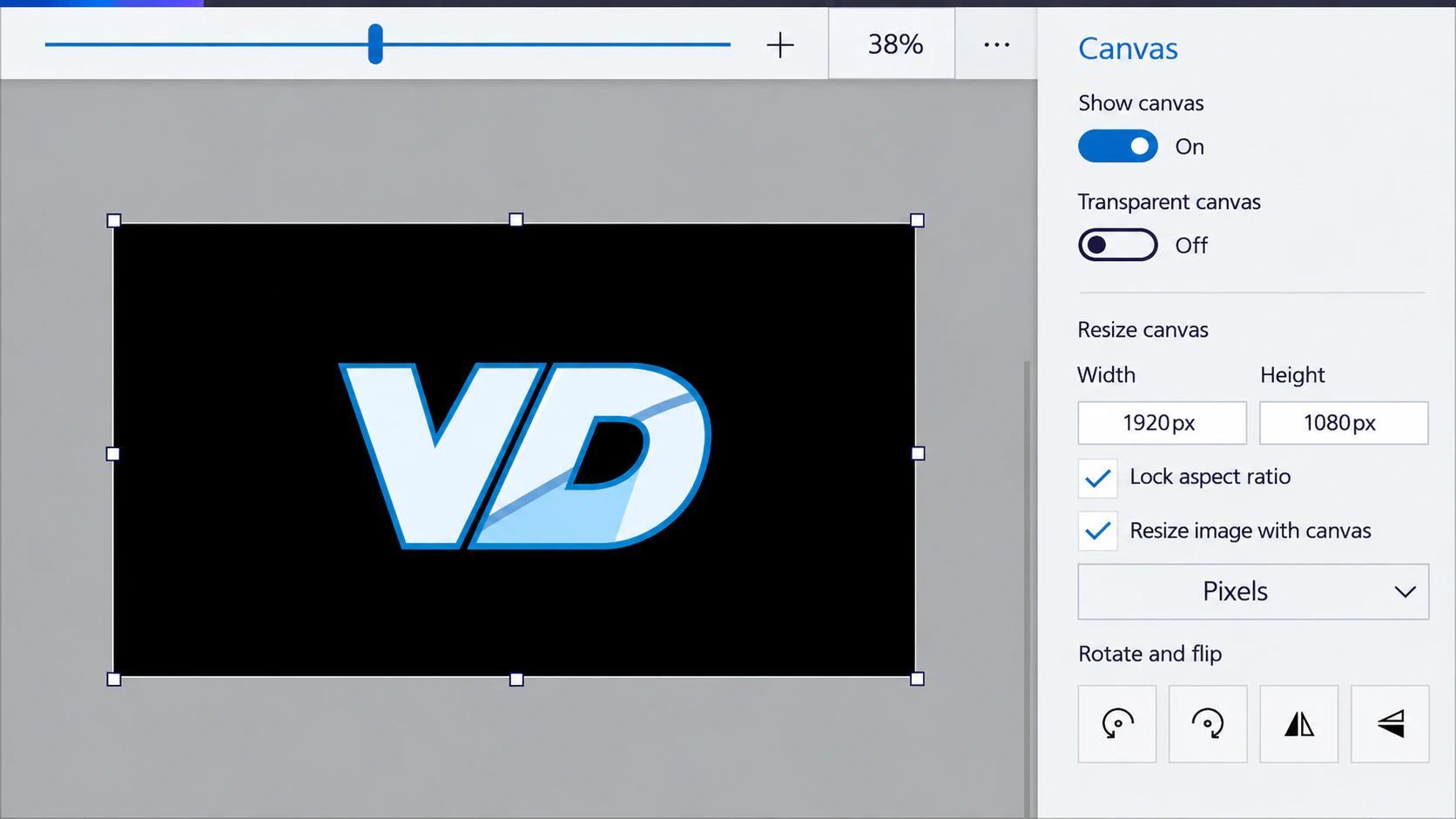
Change an image’s pixel dimensions with the Canvas panel while keeping its original proportions.
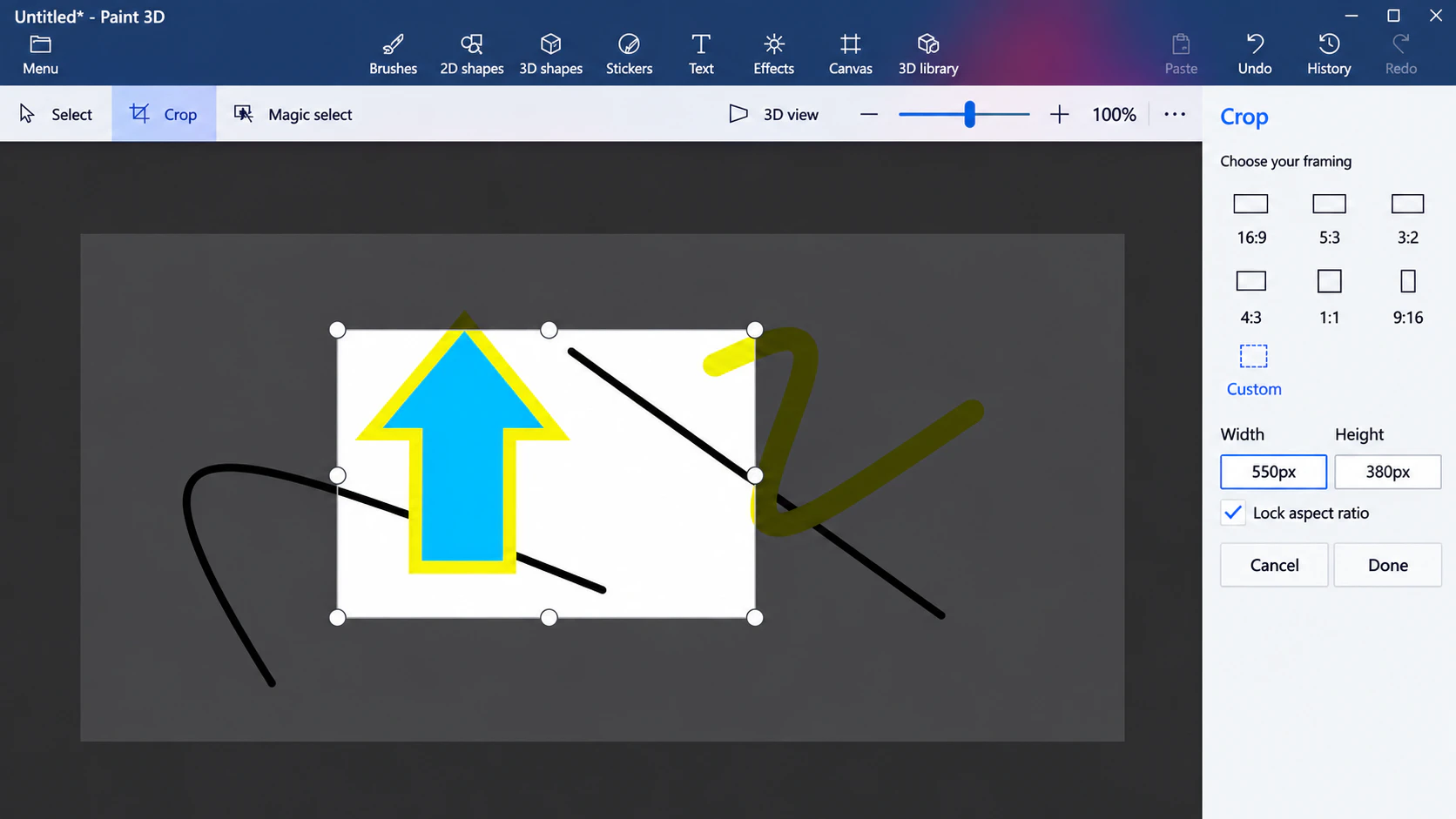
Use the Crop tool to keep the area you want, set a ratio, and save the result.
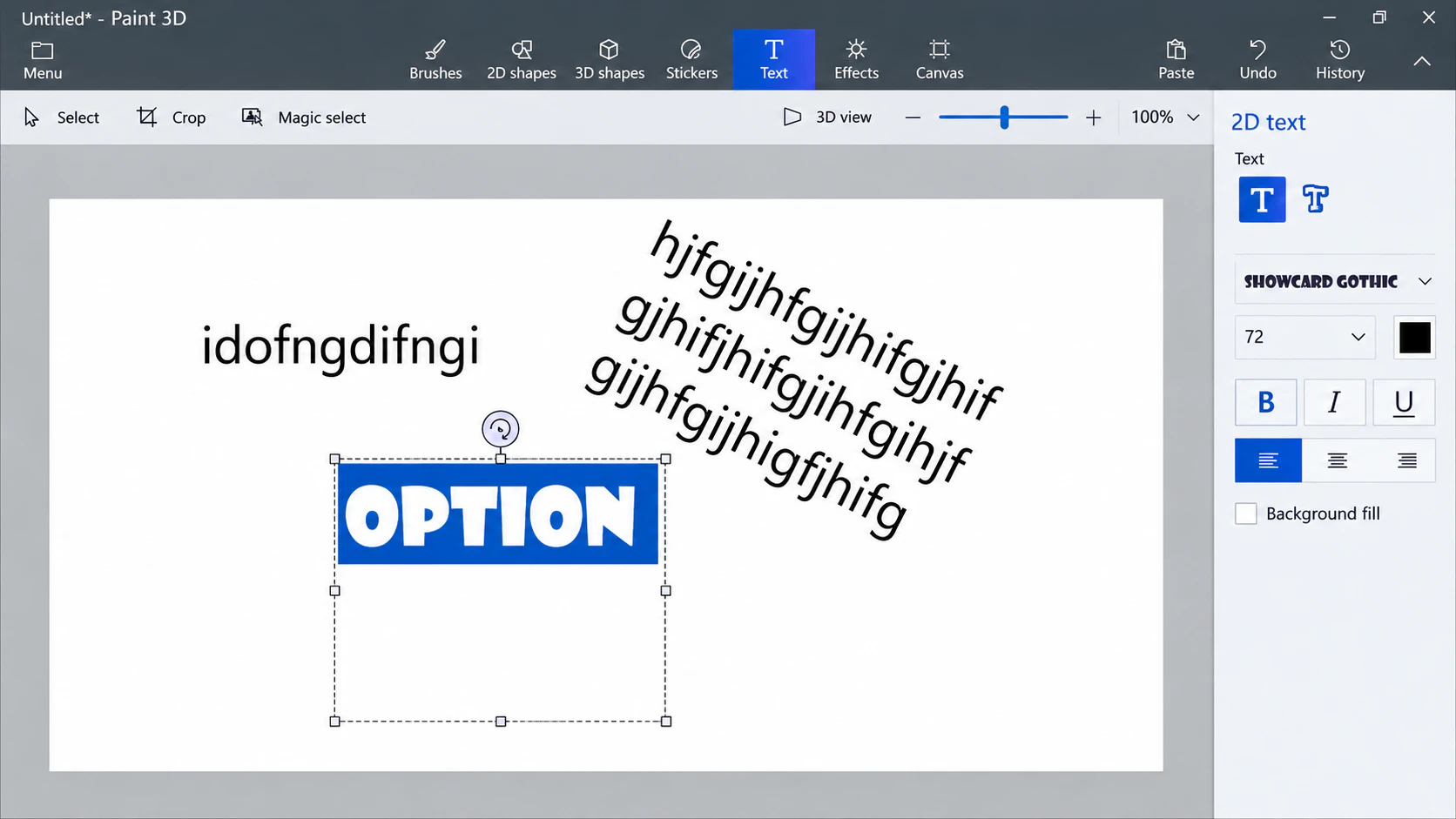
Place and format a flat caption or label with the 2D Text tool.
Learn how the initial selection box, Add, Remove, and Autofill background work together.
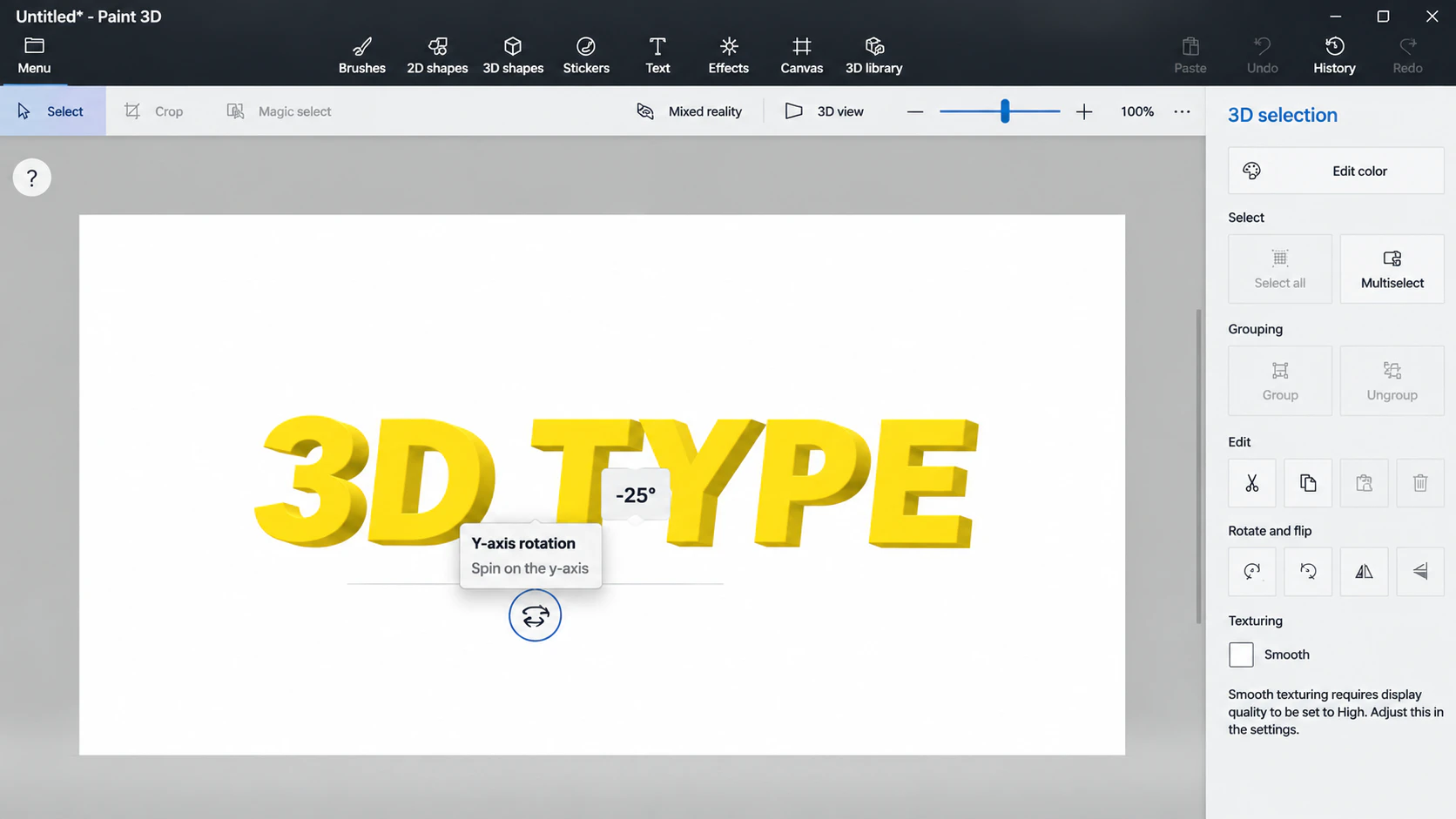
Create editable lettering, commit it as a 3D object, and rotate it to show its depth.
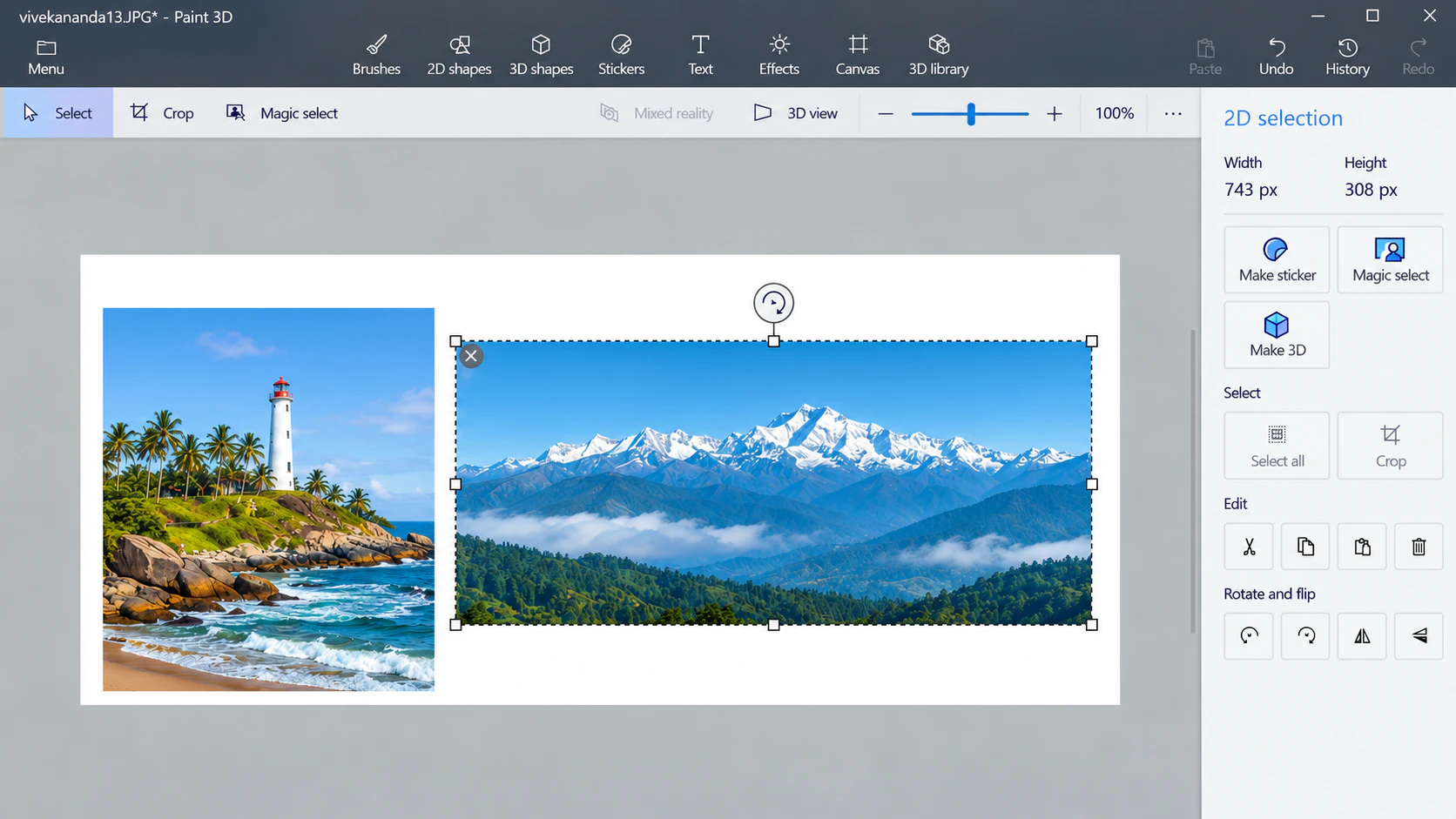
Open the first image, insert the second, and arrange both pictures on one canvas.
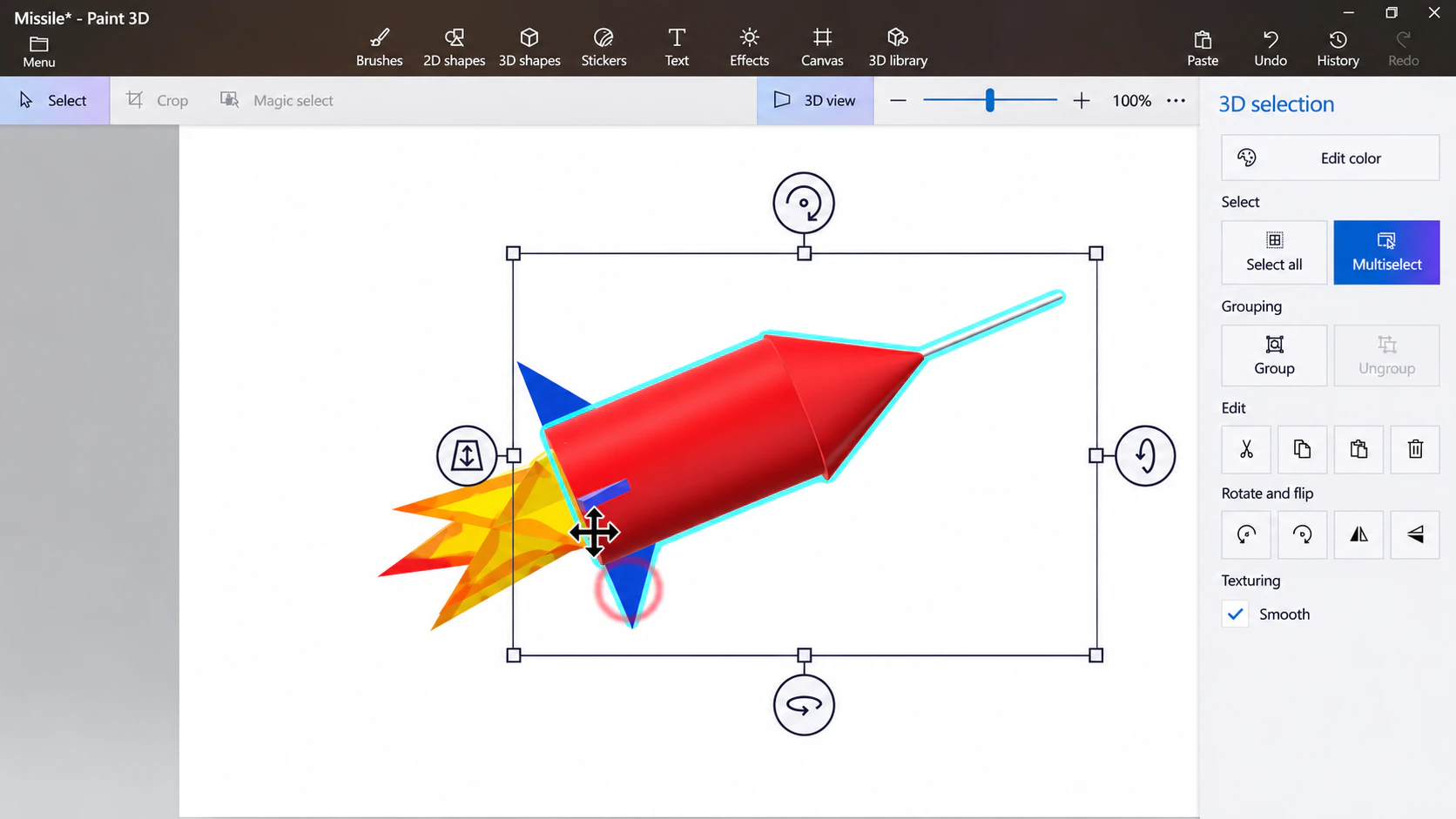
Build with shapes or 3D Doodle, adjust the model in 3D view, and save it.
Get around the workspace, edit a picture, try 3D tools, and save your first project.