


How to Add Text in Paint 3D
Add text to an image in Paint 3D, change fonts and colors, position your caption, and save the finished picture.
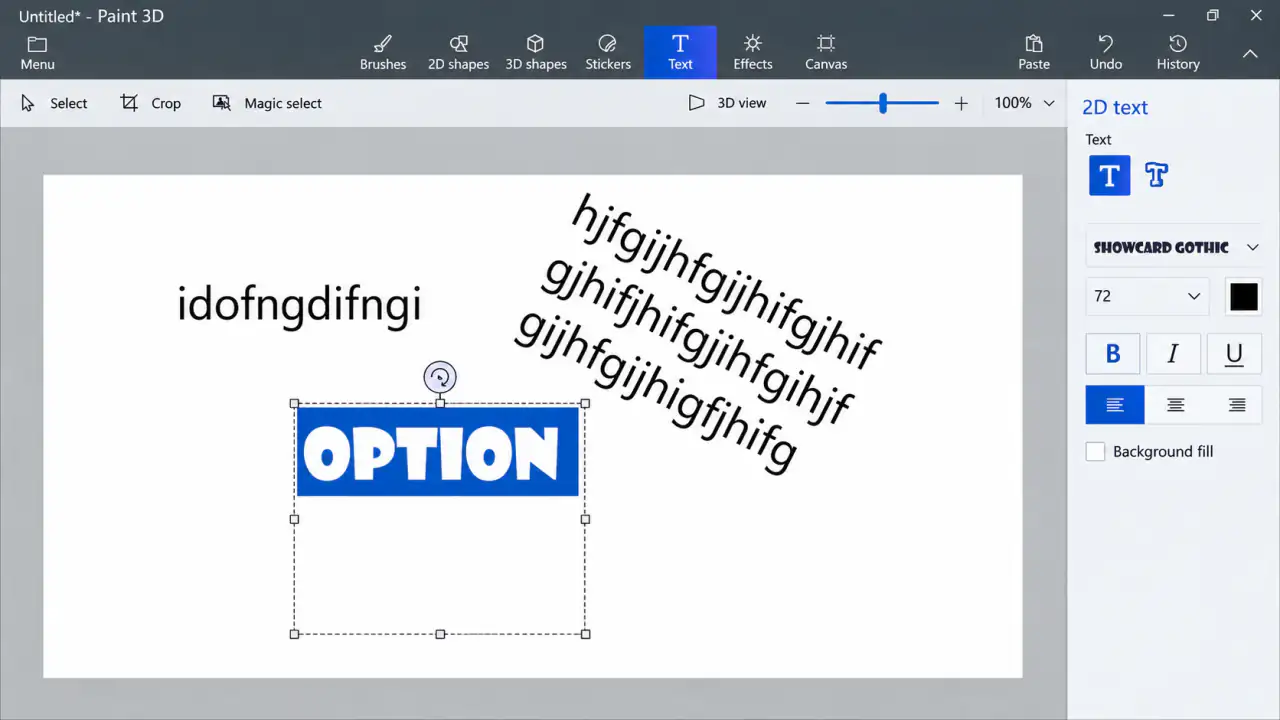
A short caption can make a screenshot much easier to understand. You might want to label a button, add a name to a picture, or make a quick thumbnail without opening another design app. Paint 3D's 2D text tool is fine for jobs like these.
There's one catch worth knowing before you start: once you click away from a 2D text box, the words become part of the image rather than an ordinary editable text field. So positioning and proofreading the text before you finish is important. Here's the way I'd do it.
How to Write Text on a Picture in Paint 3D
Open the Text Tool
Open your picture in Paint 3D, then click Text on the toolbar. In the right-hand panel, select 2D text rather than 3D text.
2D text is a better choice for a simple caption or label that should sit flat on the picture.
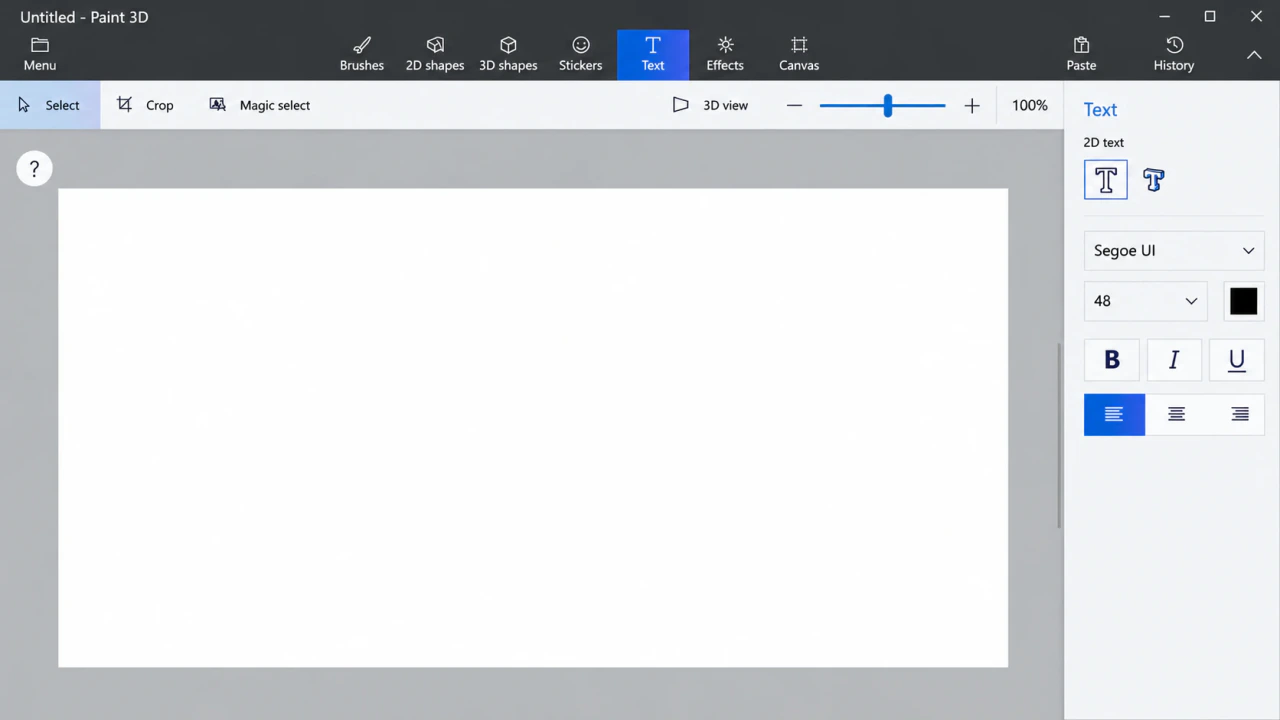
Create a Text Box
Click and drag on the image to make a text box. Type your words inside it. If a word moves to the next line unexpectedly, make the box wider while it's still active.
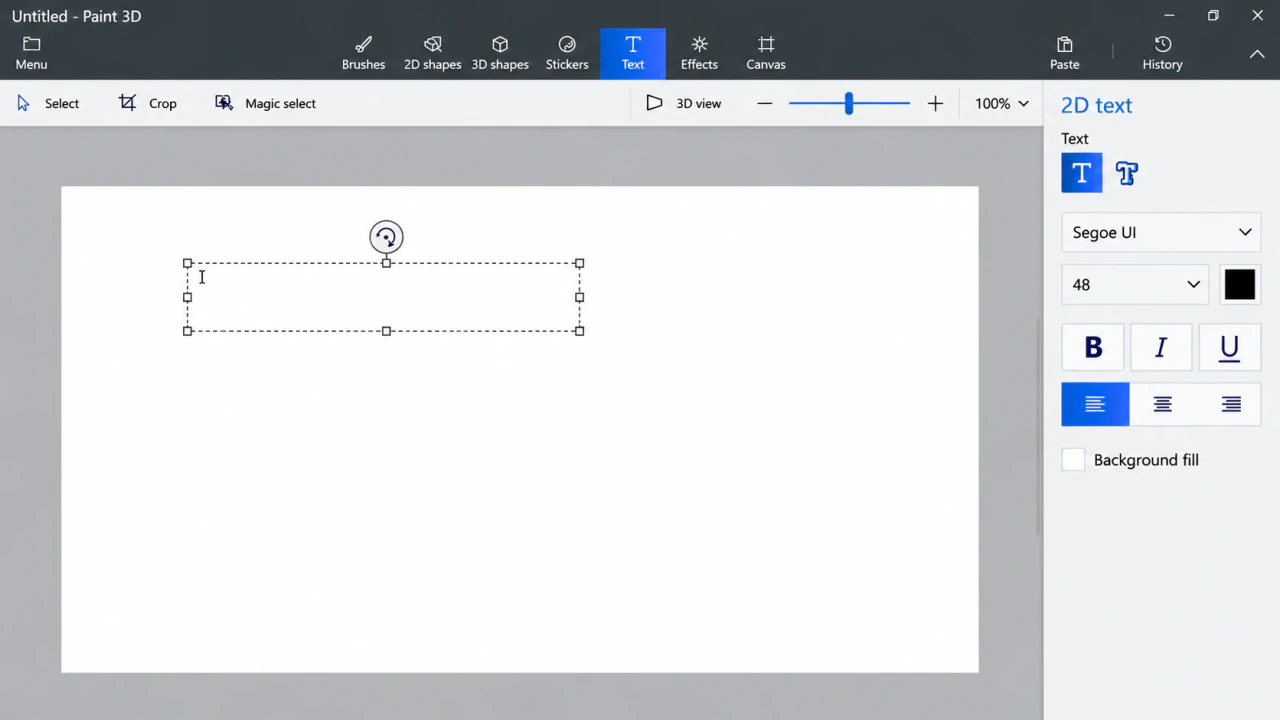
Change the Font, Size, and Color
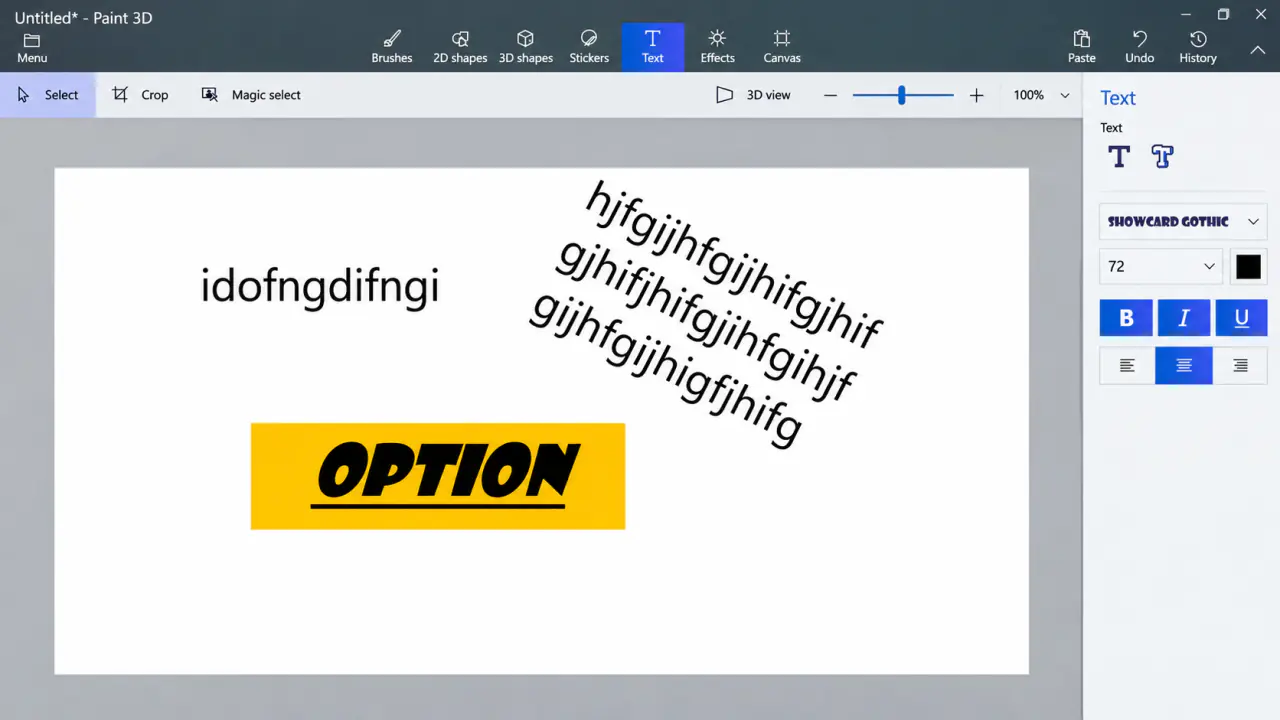
While the text box is active, select your text and adjust the style using the options on the right. You can change the font, make the words bigger, or pick a different color.
Try a color that stands out from the photo. If the background is busy, a filled text background can make the caption easier to read.
Position the Text and Save
Move the active text box into the right place and check the spelling. Then click outside the box to apply the text to the picture.
Important: After you click away, 2D text is no longer editable as ordinary typed text. Double-check everything first. When you're done, select Menu > Save as > Image.
Tips for Making Text Easier to Read
Keep your caption short, use enough contrast, and avoid placing words over the busiest part of the picture. Also, check how the text looks at normal size. A caption that seems large on your screen may be hard to read when the image is reduced for social media.
A Simple Example: Put a Label on a Screenshot
Say you've taken a screenshot for a tutorial and want to add the words "Click here" near a button. Open the screenshot, choose 2D Text, and draw a box in an empty part of the image. Use a font size that will still be readable when the screenshot is displayed on a phone, not just when you're viewing it full-size on your computer.
If the screenshot has a dark background, light text might be easier to read. On a bright image, a dark label usually works better. Don't try to solve every readability problem by making the text huge; sometimes moving it to a quieter part of the image makes a bigger difference.
Why Can't I Edit My Text Anymore?
This is probably the most frustrating part of working with 2D text in Paint 3D. While the box is active, you can change the words and formatting. Once you've clicked elsewhere and committed it, it behaves like part of the picture. There isn't a normal text layer you can reopen later in the same way as a word processor.
If you've just clicked away, use Ctrl + Z and see whether you can return to the editable state. If you've already done several other things, undoing might remove those changes too. That's why I would add captions toward the end of the edit and save a clean original before placing text over it.
Should You Use 2D or 3D Text?
For an instruction label, meme caption, or basic image title, stay with 2D Text. Choose 3D Text when you actually want the words to have depth or sit at an angle. It's a fun effect, but it often makes ordinary instructions harder to read.
Frequently Asked Questions
Can I edit text after clicking outside the box?
Not as normal 2D text. If the change is recent, try Undo. Otherwise, you may need to remove the old caption or start again from your original photo.
What's the difference between 2D and 3D text?
2D text sits flat on the image. 3D text becomes a separate object that you can rotate and position in a 3D scene.