


How to Make 3D Text in Paint 3D
Create 3D text in Paint 3D, customize its font and color, rotate the letters, and save the result for your project.
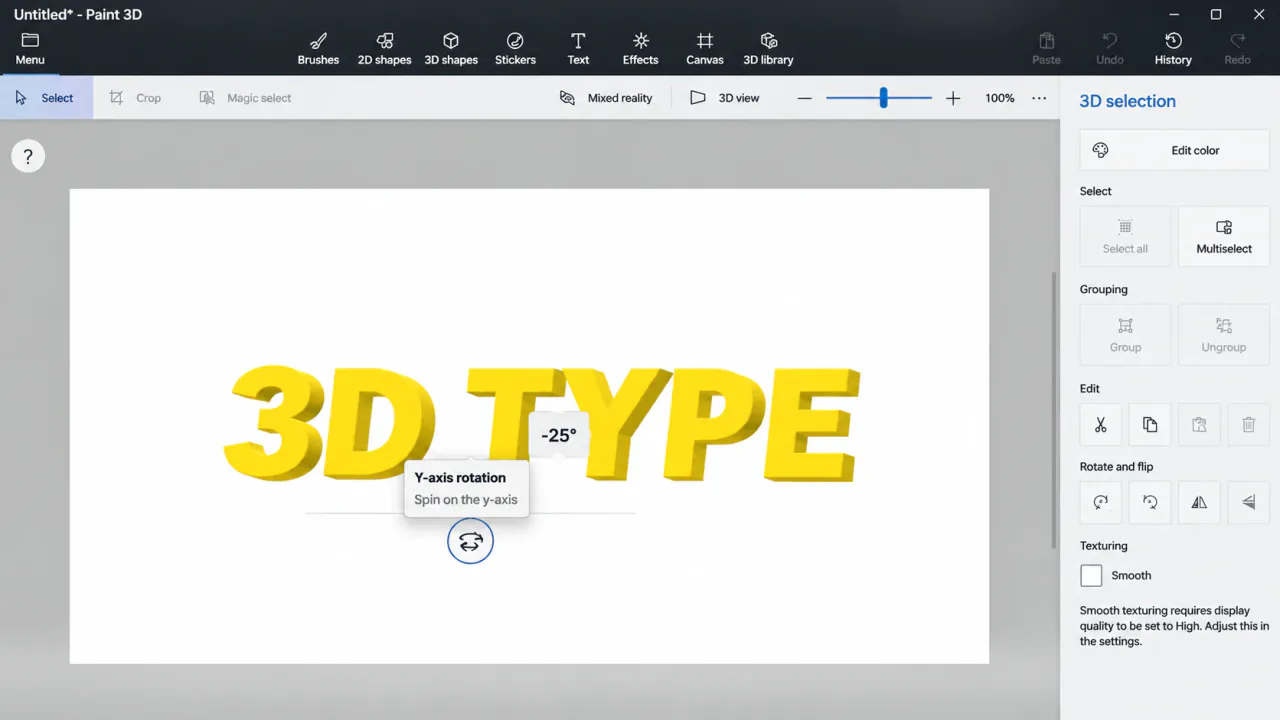
If you're making a poster or title graphic, ordinary text can look a little flat. Paint 3D lets you give the words depth and then rotate them like a 3D object. It works nicely for short headings, especially when you want the title to lean slightly toward the viewer.
The part to watch out for is editing: once the lettering becomes an object, changing the actual words is less straightforward than moving or rotating them. Pick your wording and font first, then play with the angle and placement.
How to Create 3D Letters in Paint 3D
Select the 3D Text Tool
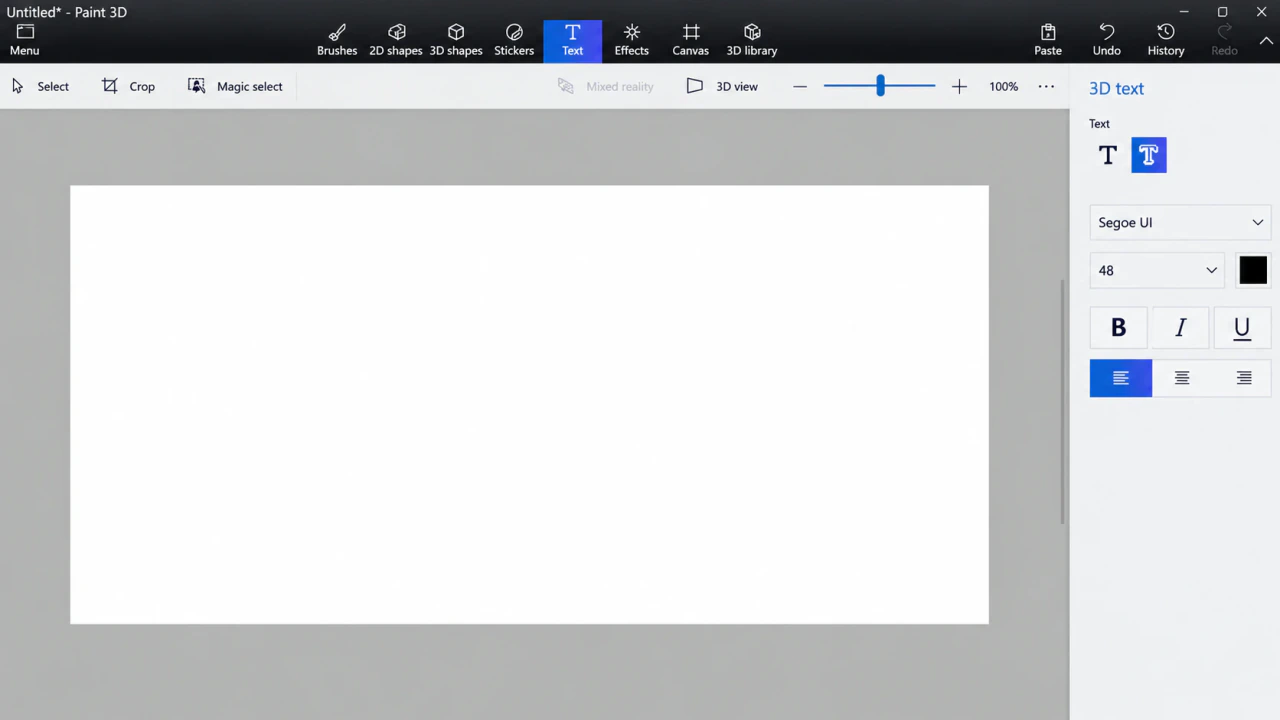
Open a new project or an existing design. Click Text on the toolbar and choose the 3D text option in the panel on the right.
Make sure you select 3D text rather than 2D text, since the two behave differently after you place them.
Type Your Words
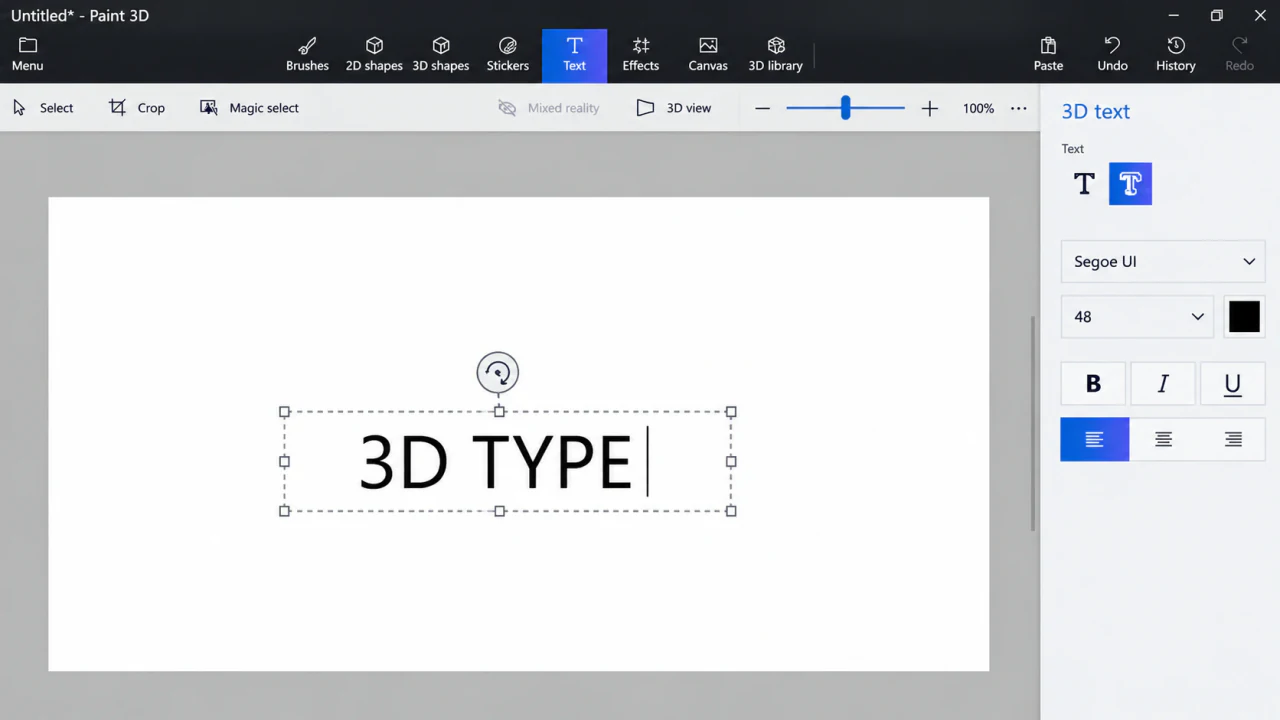
Drag a text box onto the canvas and enter the text you want. Short words are a good place to start. If the text wraps onto another line, make the box wider.
Customize the Text
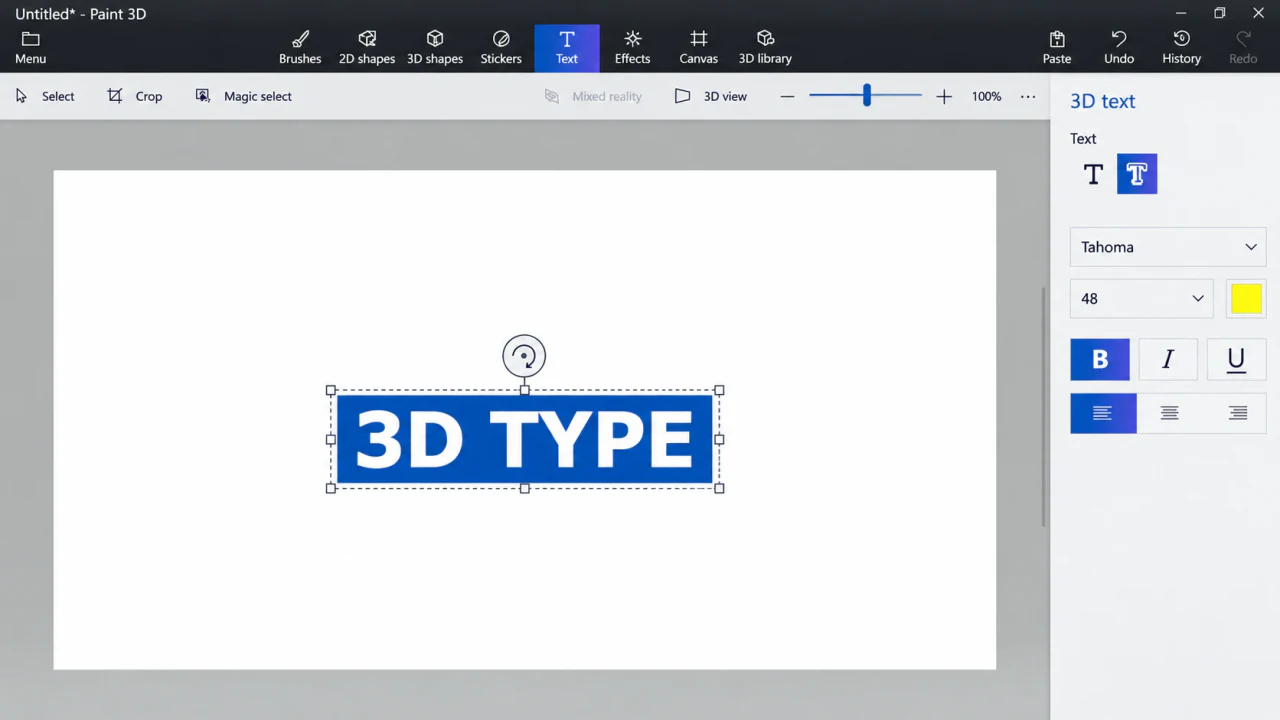
While the text box is active, choose a font, size, and color. A thicker font often makes the depth easier to see when you rotate the words.
Check your spelling now, as changing the words later isn't as straightforward once the text has become a 3D object.
Rotate and Position the 3D Text
Click outside the text box to finish typing. Then select the letters and use the rotation handles to tilt the text. Try turning it slightly to one side so you can see both the front and the depth of the letters.
You can also use 3D view to inspect the object from another angle. Save the editable project if you plan to adjust the text again.
2D Text vs. 3D Text in Paint 3D
Use 2D text when you're adding a flat caption to a picture. Choose 3D text when you want letters you can move and rotate as an object. If you only need a normal image for sharing, you can export a view of your 3D text as PNG or JPEG.
Make the 3D Effect Visible Without Overdoing It
One thing to watch for with 3D Text is how easily the depth disappears when you look straight at the front of the letters. Try rotating the object just a little. You don't need to tilt it dramatically; a small angle often shows the side surfaces while keeping the wording legible.
If you're placing the title over a photograph, test it against the actual background. A color that looks bright on the blank canvas might blend into a busy picture. Keep the words short, avoid overly thin fonts, and leave breathing room around the letters. A three-word heading often works much better than a full sentence.
Why Your Text Looks Flat
First, check that you chose 3D Text, not 2D Text. Next, click the text object and rotate it so you can see some of the sides. An object viewed directly from the front can appear almost flat even when it has depth. Switch to 3D View if you need to inspect it from another angle.
If your real goal is simply to add a readable caption to a tutorial screenshot, use 2D Text instead. A 3D title can look nice on a poster, but there's no advantage in using it for every line of text.
Frequently Asked Questions
Can I change the words after creating 3D text?
You can edit the wording while the text box is active. After you finish it as an object, it's usually easier to undo the action or create a new text object if you need different words.
How do I save 3D text as an image?
Position the letters at the angle you want, then choose Menu > Save as > Image. The exported picture shows that view; it won't contain an editable 3D object.