


How to Create 3D Models in Paint 3D
Learn to create a simple 3D model in Paint 3D using shapes, 3D Doodle, rotation tools, and model export options.
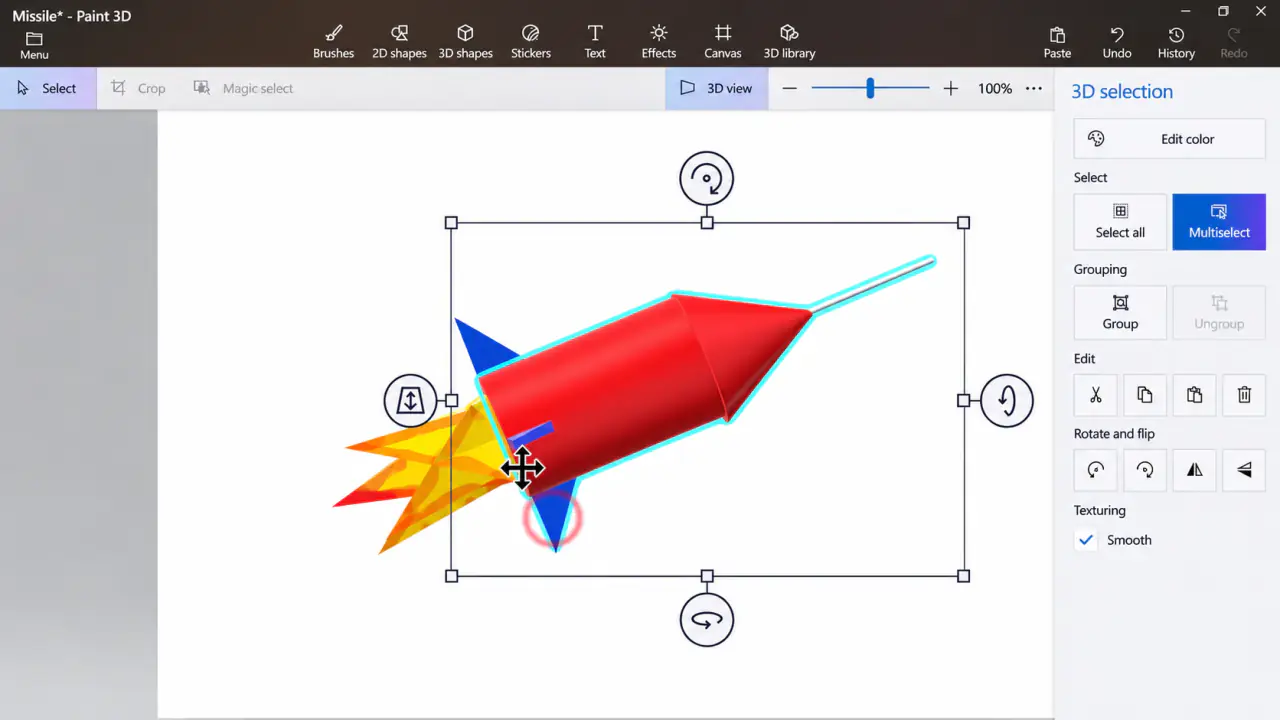
The easiest way to get comfortable with 3D modeling is to build something from simple pieces. Think of a toy rocket: one cylinder for the body, a cone on top, and a few small shapes for details. Paint 3D is well suited to experiments like that.
You can start with ready-made objects or sketch a custom shape using 3D Doodle. The part that takes a little getting used to is depth: two shapes that look joined from the front might actually be far apart when you rotate the view. We'll build a simple scene and check it from more than one angle.
How to Make a 3D Model in Paint 3D
Add a 3D Shape
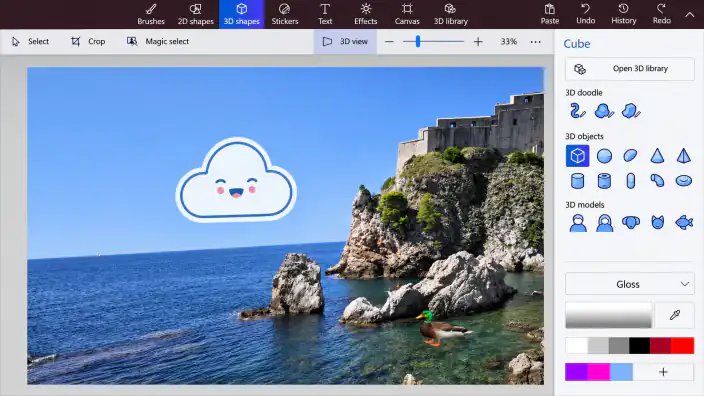
Open Paint 3D and start a new project. Click 3D shapes on the toolbar, then pick a shape from the panel on the right. Try a cube or sphere first so you can learn how the controls work.
Drag on the canvas to place the shape. You can select it again to change its size or color.
Draw Your Own Shape with 3D Doodle
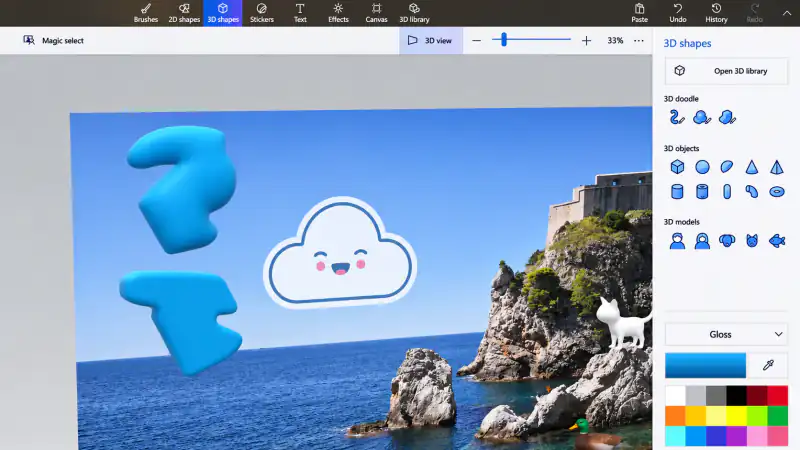
If the built-in shapes aren't enough, choose 3D Doodle from the 3D shapes options. Draw a simple outline and close it to create a shape with depth.
Try a basic rounded object before making anything detailed. You'll find it easier to understand how your drawing turns into a 3D object.
Rotate and Arrange the Objects
Click a shape to select it. The handles around the object let you resize, rotate, and move it. Switch to 3D view to check how the pieces line up from different angles.
If you're combining several shapes, make sure they actually touch in 3D space. Two objects can look connected from the front but sit far apart when viewed from the side.
Save or Export Your Model
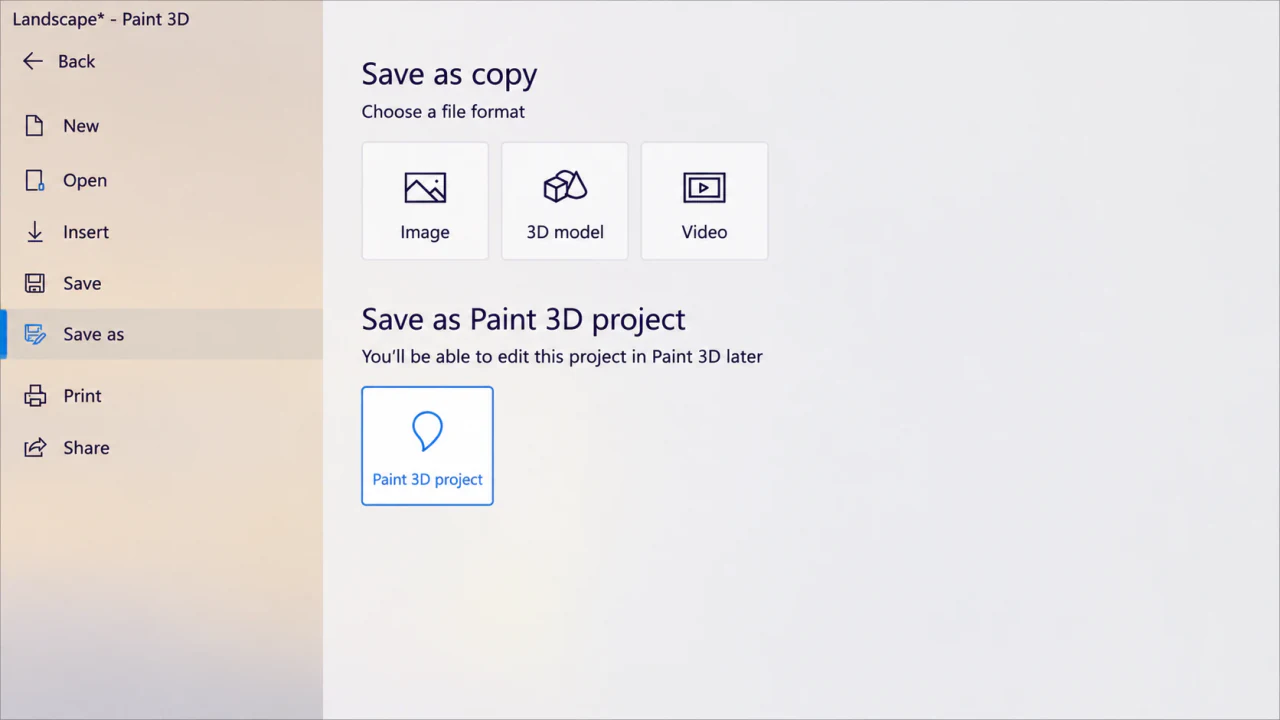
Go to Menu > Save as. Choose Paint 3D project if you want to keep editing the scene later. If you need a file for another 3D program, select 3D model and choose a compatible available format.
You can also choose Image to save a flat picture of your model.
Easy 3D Model Idea for Beginners
Try making a small rocket from simple shapes. Use a cylinder for the body, a cone for the top, and smaller shapes for details. Give the pieces different colors while arranging them, then rotate the view to check how everything fits together.
You don't need a perfect model on your first attempt. The goal is to get comfortable moving objects in three dimensions.
Build Your First Model: A Small Rocket
Start with a cylinder for the body. Make it reasonably tall, then add a cone above it for the nose. You can use smaller shapes for the fins or windows, changing their colors so it's easy to tell the parts apart while you're arranging them. Don't worry about making it realistic; this is just a way to get used to selecting and moving objects.
Now rotate the view. Does the cone actually sit on top of the cylinder, or is it floating behind it? Fix the spacing from the side, then check again from the front. This little habit is useful in every 3D project because a single front-facing view hides a lot of depth mistakes.
3D Shapes vs. 3D Doodle
Use ready-made 3D Shapes when the object is close to a cube, cone, sphere, or cylinder. They're quicker to resize and arrange. Use 3D Doodle when you want an irregular, hand-drawn form that isn't in the shape list. For your first few attempts, combining basic shapes is usually less frustrating than drawing everything from scratch.
Save the Right Kind of File
If you only need a picture of your model for a blog post, save it as a PNG or JPEG. But that picture won't let you rotate the model later. Save the Paint 3D project for further editing, or use a supported 3D model export format if the next application needs an actual 3D object. Keep a project copy even when you're also exporting a final image.
Frequently Asked Questions
Why do my 3D shapes look disconnected?
They may be at different depths. Switch to 3D view, check the model from the side, and move the pieces closer until they line up.
Is saving as PNG the same as saving a 3D model?
No. PNG saves a flat picture of the scene. Use a Paint 3D project or a compatible 3D model format if you want to preserve or reuse the model itself.